
Mac companion guide
Desktop pets for Mac: setup and what to expect
A desktop pet is not a second operating system or a separate game window. It is a small companion that sits beside your work, moves when you want it to, and gives an ordinary screen a little more life.
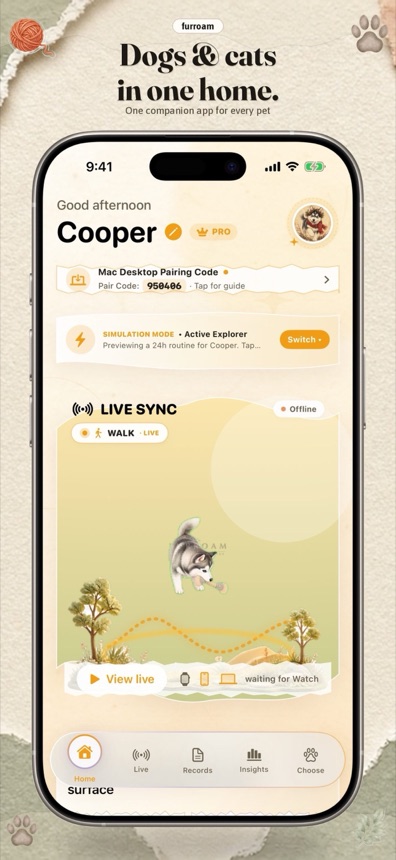
The short version: choose a companion, keep it floating beside your work, and decide how much interaction you want. A good desktop pet should be easy to move, easy to ignore, and pleasant to see again.
What a desktop pet is, and what it is not
A desktop pet is a small animated character that can stay visible while you use other applications. It may sit in a corner, wander through a scene, sleep, play, or react to an interaction. The best version is designed around presence rather than constant tasks.
It is not a full desktop replacement, a productivity score, or a pet health monitor by itself. It should not block the work you are doing or demand attention at the wrong moment.
Three qualities to look for
Low-pressure interaction
You should be able to leave the companion alone for a while without feeling behind. A virtual pet that needs a sequence of chores can be fun in a different kind of game, but it is a poor fit for someone who wants quiet company during work.
Control over placement
A floating window should be easy to move and size. You may want it in a corner while editing, out of the way while presenting, or larger when you are taking a break.
A clear relationship to other devices
Some desktop pets are standalone. Others connect to an iPhone app. Decide whether you want the Mac experience to work independently, whether the same companion should appear elsewhere, and what happens when the other device is unavailable.
How Furroam approaches the Mac desktop
Furroam brings animated cats and dogs to the Mac desktop as a floating companion. You can choose a favorite, move it to a spot that fits your setup, adjust its size, and select an action when you want a different mood.
The Mac app works without an iPhone, Apple Watch, or real pet. That makes it useful as a standalone desktop companion. If you already use Furroam on iPhone, the apps can share the same companion identity and collection, and supported activity updates can appear when devices are connected.
The optional real-pet layer does not turn the desktop pet into a medical monitor. The digital companion's simulated behavior and any real activity estimates remain separate and labeled.
A simple setup for your workflow
- Choose a corner. Place the companion where it will not cover menus, notes, or the center of your work.
- Set a comfortable size. A smaller companion is easier to keep visible without becoming distracting.
- Pick an action. Let it rest while you focus, or choose a more playful state during a break.
- Leave it alone. The value is in the small presence, not in checking it constantly.
- Adjust when needed. Move the companion before a call, presentation, or screen recording if it would get in the way.
How to decide whether you want real-pet sync
Real-pet sync can make the same companion feel more connected to a pet's day, but it also adds devices, permissions, and setup. Consider it a separate choice from the desktop pet itself.
- Choose a standalone desktop companion if you want no extra hardware.
- Add the iPhone app if you want a journal and a companion across screens.
- Add a compatible Apple Watch only if supported activity estimates are useful to you and you are comfortable with the physical setup.
You do not need to make every choice on the first day. The companion can exist before the journal and before the Watch connection.
What to expect from animations
Desktop pets are usually a collection of short actions rather than a full simulation. That is not a flaw. A rest, a stretch, a walk, or a playful moment can create a sense of life without loading a large 3D world.
Look for smooth transitions, a consistent art style, and clear control over when the character appears. A good animation should feel like a small detail in your environment, not a performance you have to supervise.
A note on subscriptions
Furroam is free to download, and Furroam Club is an optional subscription that unlocks additional actions and content. The current price and plan are shown in the App Store before purchase. If you only want to try a desktop pet, start with the free app and decide later whether more actions are worth it.
Next step: see the Furroam desktop pet for Mac, or meet the wider virtual companion collection.